Showing posts with label EasyBib. Show all posts

Friday, December 19, 2014

You Can Now Export Your Citations From EBSCO to EasyBib!

If your school is fortunate enough to have access the EBSCO databases, students can now export their citations directly into EasyBib. Schools with an EasyBib Pro account have the ability to save their bibliographies and come back at another date to finish their work. The following tutorial is based on a school with EBSCO and an EasyBib Pro account. (For a pro account, make sure you or your student is logged into EasyBib BEFORE the steps below.) The bibliography we are making is based on MLA format. If you want another format, you must tell EBSCO under "preferences".


1. Log into your school account


2. Choose which database you wish to use


3. After you search for a specific topic and choose an article,
your screen should look like this one. Choose EXPORT
from the right side of the screen.


4. You will then see the EXPORT MANAGER. Choose DIRECT EXPORT TO EASYBIB.


5. You will be brought to EasyBib and see this screen above. Arrows indicate what you should pick.


6. Presto! Your bibliographic entry is listed.

Problems? Your EBSCO account might not have the export manager activated. Call EBSCO's customer service for help.

Thursday, December 11, 2014

Amazing! 74 Infographics for Teacher-Librarians (L.A. Teachers Too!)


When your budget is low on dollars, you need to become creative when it comes to everything in your school library. Since we have a computer lab in our library-media center, (and lots of wall space...) I have decorated the lab with posters and infographics. You might have seen some of my original work, including 7 Things to Know About EBSCO, and the READ poster. There are also many posters which help students format their research paper, search for Google images, and understanding search results. When I began this search I never expected to find so many infographics for school librarians! If you are a language arts teacher, you will also find many related to grammar and reading below.


LANGUAGE ARTS
10 Do's and Don'ts for Effective Vocabulary Instruction

10 Hyphenation Tips

10 Step Book Report

11 Rules: How and When to Use a Period

12 Most Misunderstood Words in English

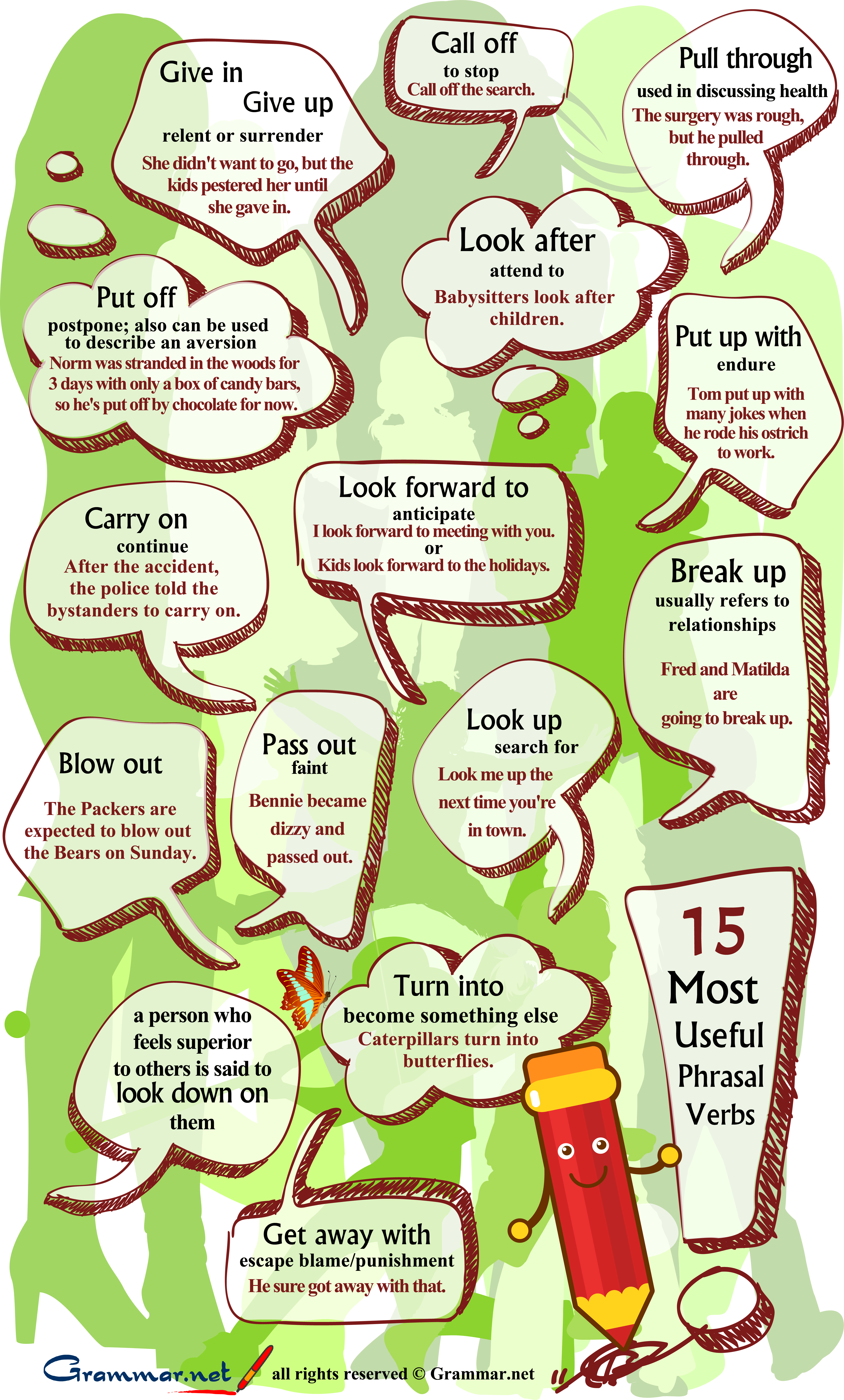
15 Most Useful Phrasal Verbs

The 15 Punctuation Marks

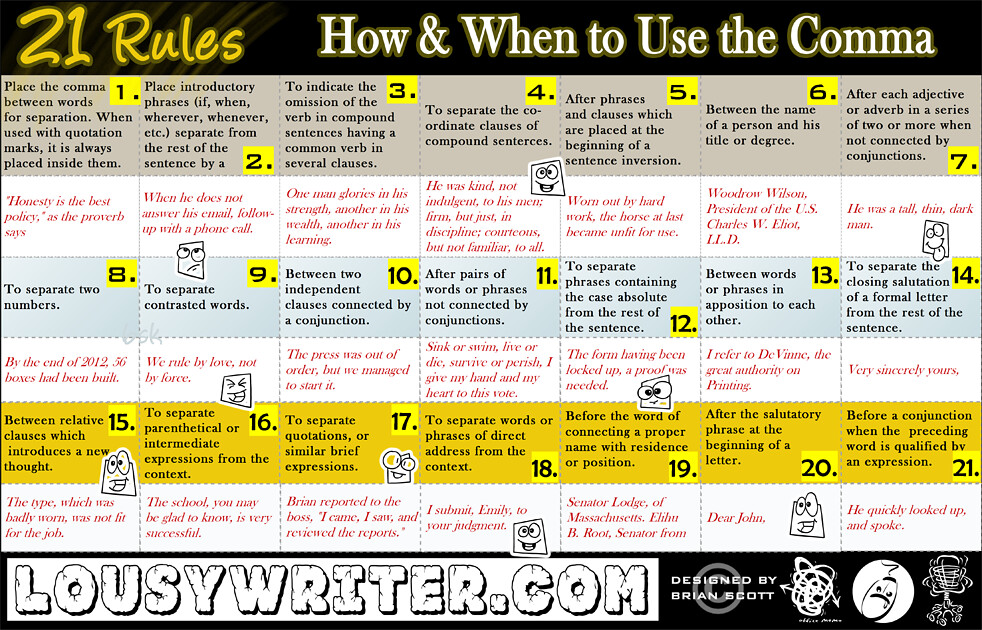
21 Rules: How and When to Use a Comma

40 Years of E-books 


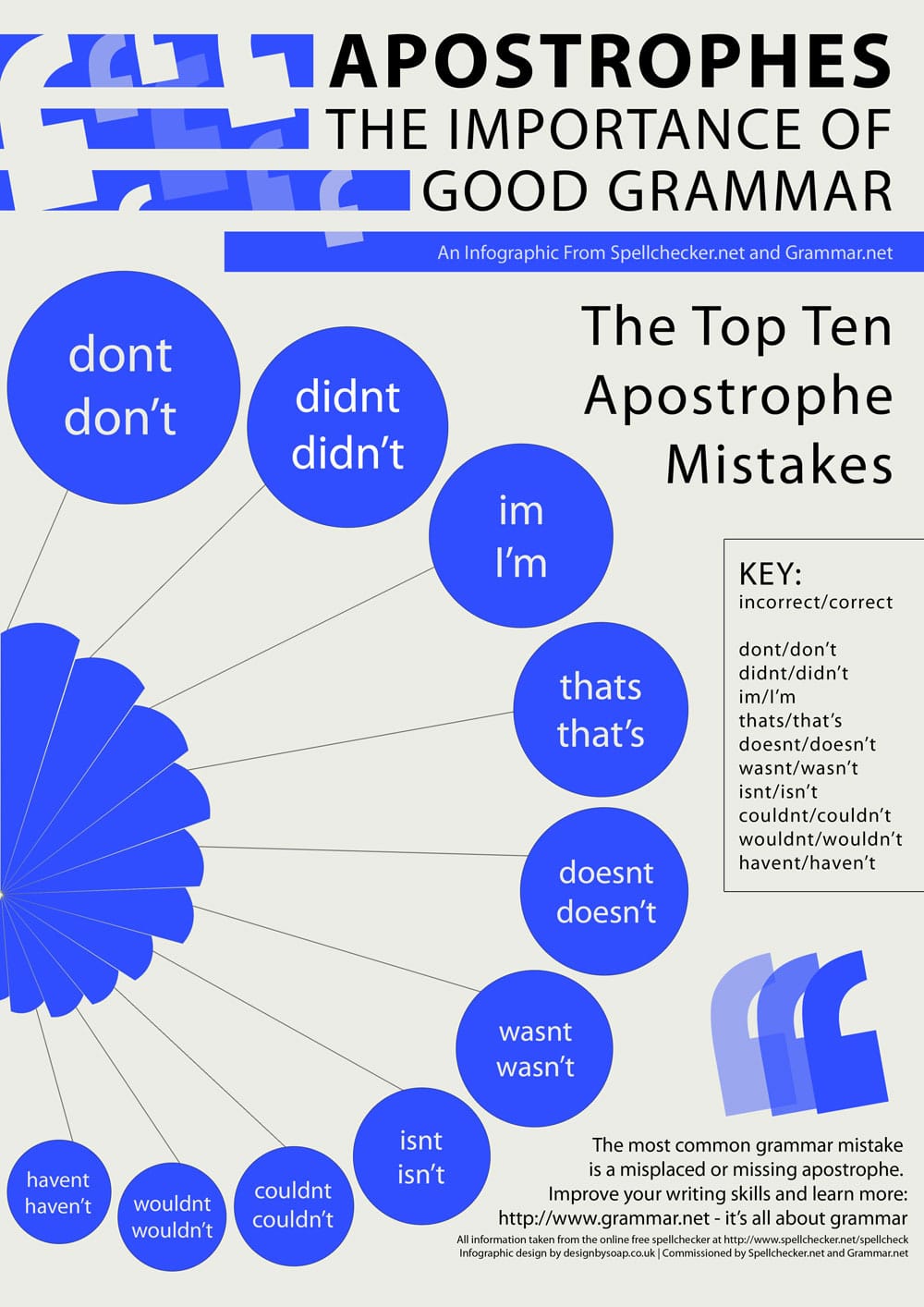
Apostrophes: The Importance of Good Grammar

The Most Annoying Writing Mistakes

Passive and Non-Aggressive Voices

Past Tense 101

Prepositions

The Top 10 List of Mark Twain's Popular Quotes

Troublesome Words

You Should Read This Before You Write That


LIKE WHAT YOU SEE? 

Follow me on RebelMouse or Twitter, Like me on Facebook or Subscribe to this blog.  AND.....Vote for my blog to receive an Edublog Award HERE.

Monday, June 30, 2014

Guest Post: Using Research Ready

As a teacher librarian, flipping our instruction has been made easy with ResearchReady, by Imagine Easy Solutions. This is a remarkable tool! There are pre-made courses easily customizable to adapt to every co-teaching opportunity. You can also write your own courses about anything you want to teach the kids. Videos, pictures, documents, etc., can be added to any page for instruction. The student management section makes organizing classes a snap. Viewing student performance gives immediate formative data to pinpoint students who need more help. This component is priceless and Imagine Easy has created an effortless way to construct meaningful assessments.

This year, to introduce new information or review skills they had been working on, my middle school students were asked to complete the online courses before beginning their projects. They would login and complete the coursework at home or at school. They were able to work at their own pace giving them the ability to spend more time on skills that were unfamiliar to them. These courses promoted more confidence, excellence and independence in the research process. I also wrote courses specific to our library like how-to use EasyBib, how-to use our databases, and what Career Day was all about for our 8th graders.
ResearchReady is geared for middle and high schools, but is worth a look by anyone interested in flipping their instruction.
ABOUT THE AUTHOR
Amy Kauth
Maple School
Northbrook/Glenview School District 30

Monday, October 7, 2013

EasyBib in Depth: It's More Than Just Citations

NOTE: When I began working on this post, I hadn't attended the NJASL (NJ Association of School Librarians) Conference. Saturday I had the pleasure of meeting Emily Grover and Brad Heringer, who both work for EasyBib. Their presentation pushed me to finish this post on EasyBib and what it has to offer.

Many of you have heard of EasyBib, one of many free online citation generators. You and your students will find much more free stuff here. When you enter the home page, you will see many tabs to choose from. Below these tabs is the Citation Generator, where your students can pick from over 59 different sources to cite.


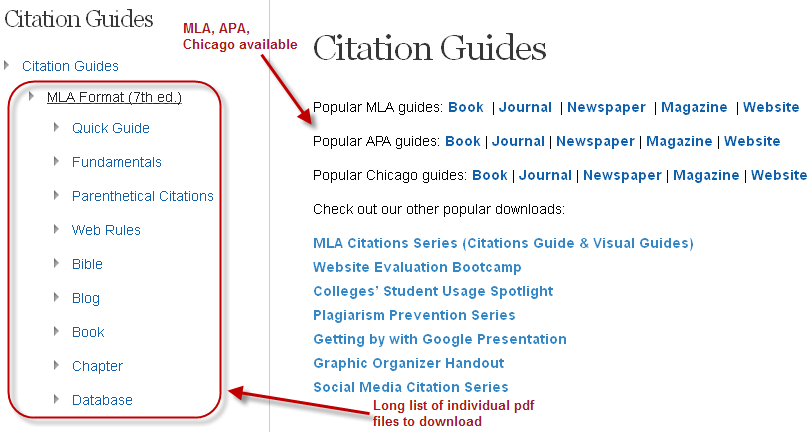
Let's first explore the one you are familiar with; the citation tab. under this section, there is a long list of downloadable pdf files in three different formats: MLA, ALA and Chicago/Turabian. Let's look at MLA, since that's what our high school students will be using. Roll your mouse over Citation Guides and MLA and you will see a long list of guides to choose from. All the guides are visually pleasing and easy to follow, so students won't have a problem understanding them.


Below on the left side of the page there is a list of Info Lit resources, which include, Website Evaluation Bootcamp, Plagiarism Prevention Series, Getting by with Google Presentation, and a Graphic Organizer handout. You can easily subscribe to any of the EasyBib series or their newsletter by filling in your name and email.

Now let's click on the research tab (on the HOME page) and search the term "school uniforms".
When students search on the EasyBib site, they are given results which rate the source as either credible, not credible or no rating. As you will notice in the image below, sources can be sorted in different ways. It is very easy to cite each and every one on the list just by clicking "Cite it".

Educators have a myriad of resources at their disposal on this site. From the home page, click "Educator Blog" which will lead you to a blog page with several choices, including Educator Resources, Product Resources, Professional Development and Student Resources. Let's first look at the Educator Resources.
There is a long list of handouts, including lesson plans, flyers, and the EasyBib Community. (social media sites under EasyBib) The Professional Development tab takes teachers to a listing of webinars, and the Student Resources offer research, citation, writing and topic guides, which can either be read online or saved as pdf files.

The only concern I have is with the left column roll-over categories. When you mouse-over a topic and it opens to a longer list, it moves too quickly and makes it difficult to pick what you would like to click on. I'm sure that it something that the site's webmaster can easily fix. In the meantime, I'm directing my students to EasyBib so that they can be information literate. For me, it's a no-brainer!

Thursday, March 7, 2013

9 Free Programs Your Students Should Be Using Right Now

Multilingual audio editor and recorder for many operating systems. Record live audio, convert tapes and records into digital recordings or CDs; Edit Ogg Vorbis, MP3, WAV or AIFF sound files, cut, copy, splice or mix sounds together, change the speed or pitch of a recording and much more.

Cam Scanner for iPhone 
Cam Scanner for Android

Students can scan through their smartphone! If they need a copy of a handout, worksheet, or need to email homework, they simply scan and email. (File can be pdf or jpeg)
EasyBib (also app for iPhones and Androids)
Free bibliography maker offers ALA, MLA, Chicago/Turabian formats; cite from 59 different sources. Download MLA 7 Guide, MLA Parenthetical Citations Guide, and much more, including online research guide assistance, step by step.

 Evernote (also app for iPhones, iPads, Blackberry and Androids,)
One of my personal favorites, Evernote allows you to collect web snippets, pages, images photos etc. all on their server and syncs with your computer, smartphone or iPad. The web clipper extension in Chrome allows you to take all or part of a site. The computer version (download Evernote at home) adds the function of voice memos. Evernote Trunk offers many apps which directly work with Evernote.


 Google Drive
Everyone should have a Gmail account. No other email offers as much as Google does, and here's why: Google Drive allows you to upload files and folders, create documents, spreadsheets, presentations, forms and drawings and download them in many different formats. If the teacher asks for a PDF file, Google can convert the file. Need a file in MS Word format? DOCX is available. Your students can collaborate on projects even if they are not in the same location. Doing a survey? Google Forms will present results through a Gmail account. Totally awesome, period.


Jing
Jing allows you to take screenshots or record screencasts. (up to 5 minutes) Not bad for short videos, right? (The pro version costs $9.95/month.)


Pixton
Students can create their own comic strips using the click and drag method. 


Skitch (use with Evernote) Android appiPhone app
"Annotate images with arrows, shapes, text, and more. Use Skitch to sketch something new, mark up maps, screen captures, or even a photo. Then save or share your Skitch annotation to help others see and understand your ideas."


Zamzar
Students can convert files without downloading any software. Zamzar currently supports a huge number, including documents, images, music, video, e-Book and compressed files.
 

LinkWithin

Related Posts Plugin for WordPress, Blogger...

AddToAny